


How to Register Steps
Step 1:
 At the very top of the homepage, click on the MyGateway icon.
Or go to noce.edu/mygateway.
*Safari is not compatible*
Step 2:
Log onto MyGateway with your 8-digit Student ID number (also known as your myGateway ID or Username) and your password.
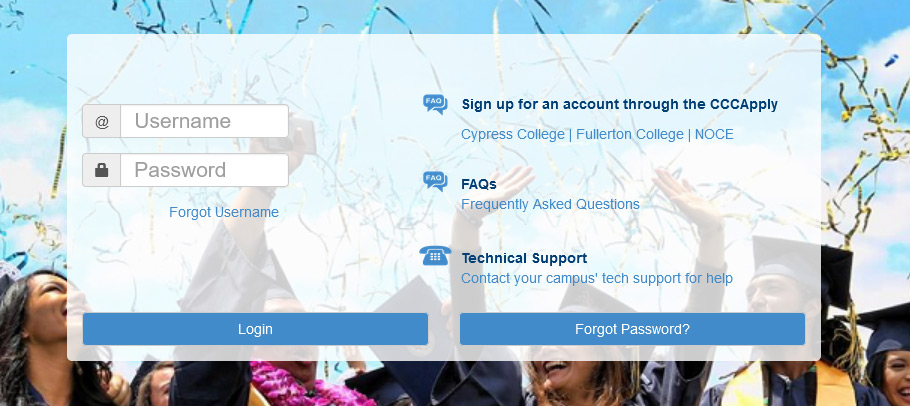
Don’t know your 8-digit Student ID number?
Click on the “Forgot Username” link on the MyGateway site.
Don’t know your password?
Click on the “Forgot Password?” button on the MyGateway site. 
Do you still need help or have questions? E-mail StarHelp at starhelp@noce.edu or call StarHelp at (714) 808-4679.
Step 3:
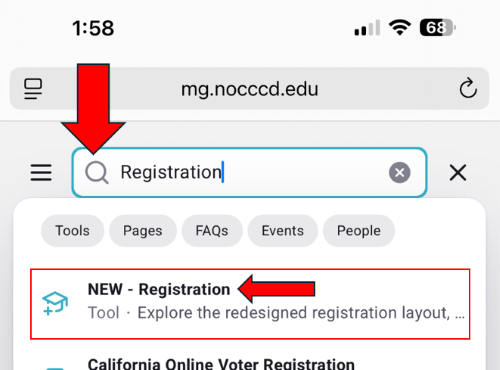
Click the Search icon at the top of the screen, then type Registration into the search bar. From the results, click on New – Registration.
Step 4:
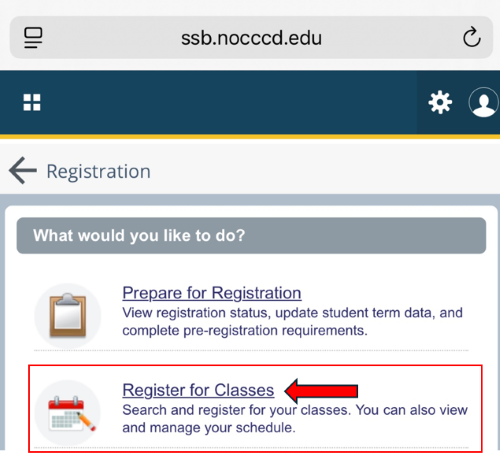
Click the “Register for Classes” button to begin searching and registering for your courses.
Step 5:
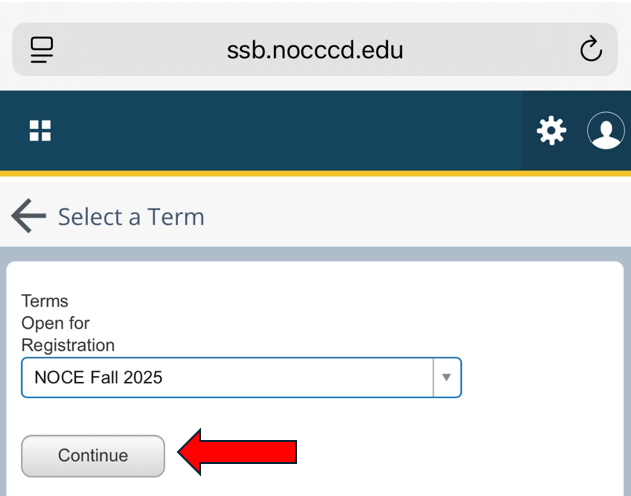
Choose the appropriate NOCE term and click “Continue.”
- Spring Term: January – May
- Summer Term: June – August
- Fall Term: August – December
*NOCE Spring 2026 term will be available:
Tuesday, December 2: Active Adults/Emeritus Classes
Wednesday, December 3: All Other Classes
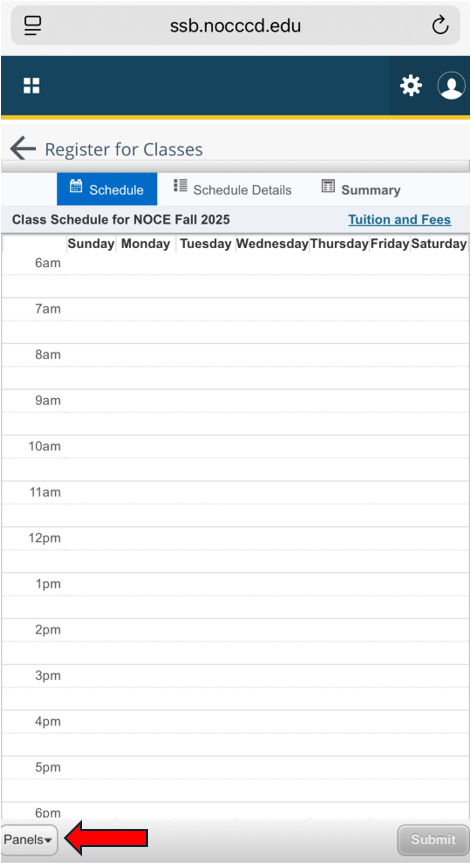
Step 6:
Click on the “Panels” button in the bottom left-hand corner.
Step 7:
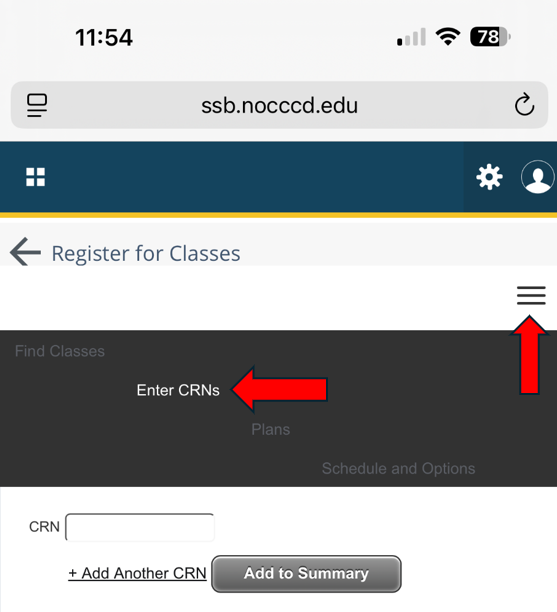
Click the ☰ hamburger menu icon, then click Enter CRNs.
Step 8:
Click inside the CRN field to enter your course number.
- To add multiple courses, click the “Add Another CRN”
 link.
link. - Once all CRNs are entered, click the “Add to Summary” button.
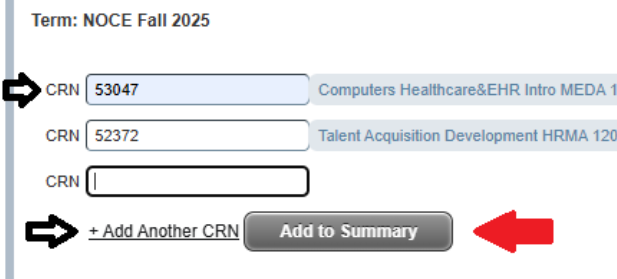
For a complete list of CRN’s, please visit the Schedule of Classes on our website: noce.edu/schedule.
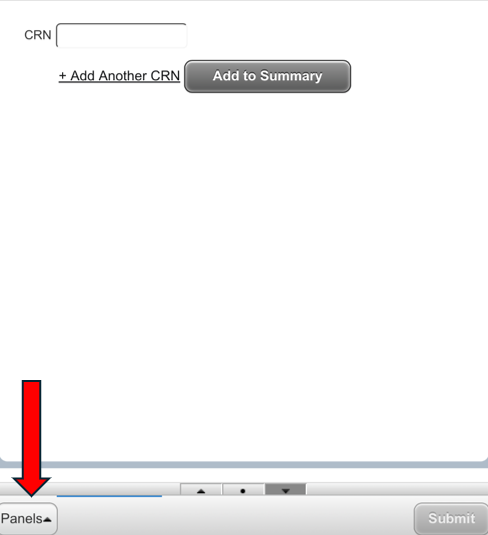
Step 9:
Then click on the “Panels” button again:
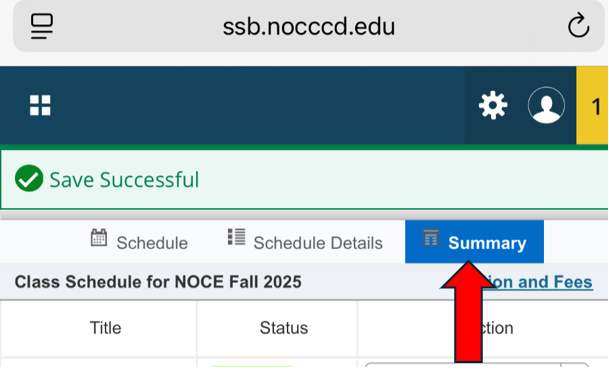
From here, click on the “Summary” button:
Step 10:
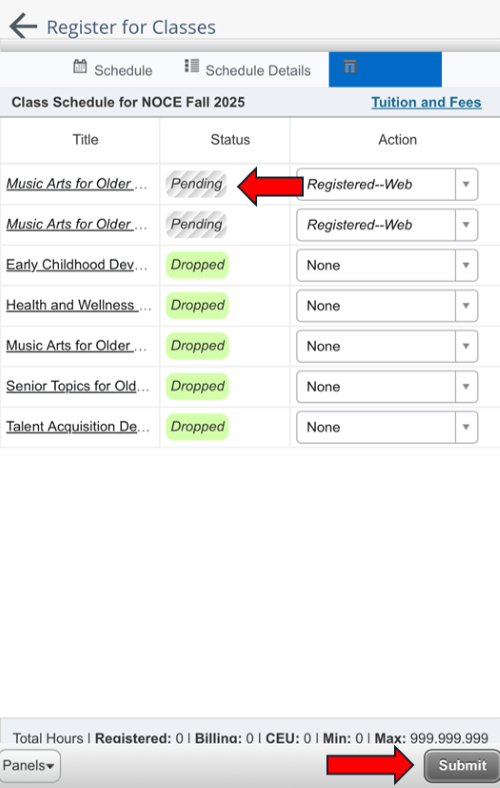
Your selected courses will now appear in the “Summary” section.
- The Status column will show as “Pending”
The Action column will show as “Registered – Web.” From here, click “Submit” to finalize your registration.
Step 11:
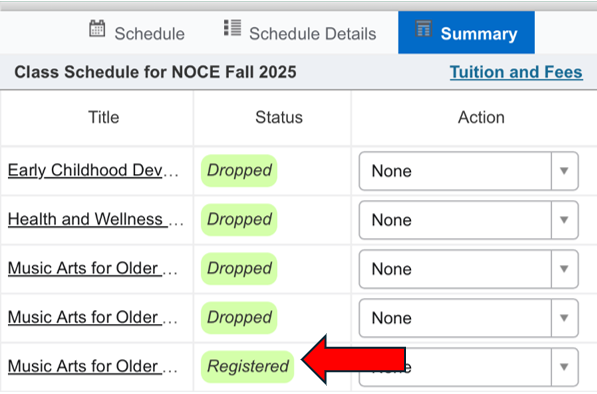
If your registration is successful, the Status column in your Summary will update to “Registered.”
If you receive an error preventing registration, please visit noce.edu/errors for a list of common issues, what they mean, and how to resolve them.

Step 12:
To print your schedule, please click the following link for instructions on how to confirm your class schedule on mobile.
How to Waitlist Steps
Step 1:
Follow the Steps 1 through 10 on the “How to Register Steps” listed above.
Step 2:
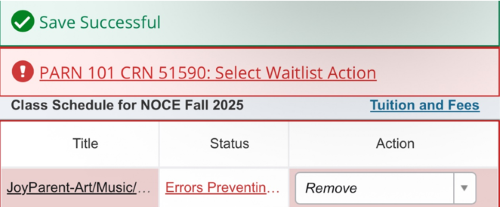
If a class is full but has a waitlist, you’ll see a message that says: “Closed – # Waitlisted”. The number shown indicates how many students are currently on the waitlist.
Step 3:
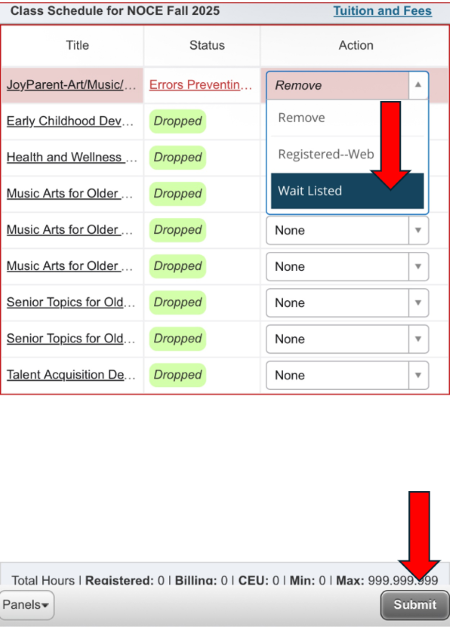
Click on the Action button next to your desired CRN (Course Reference Number), select “Wait Listed”, then click Submit.
Step 4:
Once successfully waitlisted, the course status will update to “Waitlisted”. To verify your waitlist status, please click the following link for instructions on how to confirm your class schedule on mobile.

Students added to the waitlist are not guaranteed enrollment into any class and must meet all registration requirements. Waitlisted students are accepted into a class as space becomes available, in the order they were placed on the waitlist.
If a seat becomes available, students on the waitlist will be notified by an automated e-mail (noreply@nocccd.edu). The student must register by the 24-hour deadline indicated in the notification, which begins when the email is sent. The student will be dropped from the waitlist if the deadline is missed.
Follow Step 5 Registering from the Waitlist (scroll below), or contact Admissions and Records at (714) 808-4679 or starhelp@noce.edu for registration assistance.
- Online Classes: The waitlist process is only valid through the end of the first week of the class.
- In-person Classes: The waitlist process is only valid through the day of the first class meeting.
Only officially registered students may attend class. A waitlisted student is not officially registered in the class until they complete the registration process to be added to the roster, either through self-registration or Admissions and Records.
Step 5: Registering from the Waitlist
If a seat becomes available, you will receive an email stating that you are now eligible to register. You will have 24 hours from the time of receiving the email to register for this course.

Step 6:
Follow Steps 1-5 on the “How to Register” section at the top of the page.
Step 7:
Click on the “Summary” button:
Step 8:
Select “None” underneath the action column for your desired waitlisted CRN and click on “Registered-Web”. Then click “Submit”.
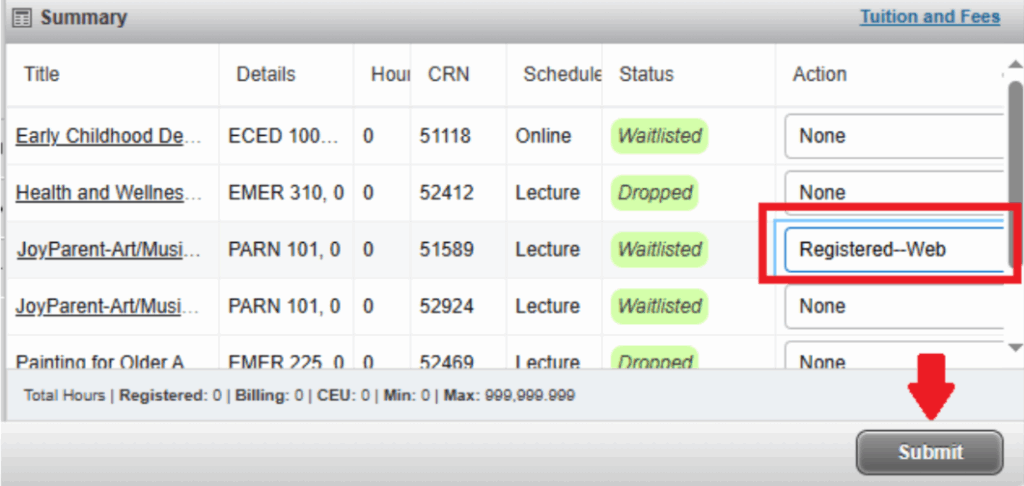
Step 9:
If you have successfully registered, the status of the course will now state “Registered”.

Click the following link for instructions on how to confirm your class schedule on mobile. Continue to Step 8 for how to start class.
Step 10: If registered from the waitlist
Online courses:
- Before the class start date: log into Canvas at noce.edu/canvas on the first class date to begin class.
- On or after the class start date: log into Canvas at noce.edu/canvas 24 hours after registration to access the class.
How to Drop Steps
Step 1:
Follow the Steps 1 through 5 on the “How to Register Steps” listed above.
Step 2:
Click on the “Summary” button:
Step 3:
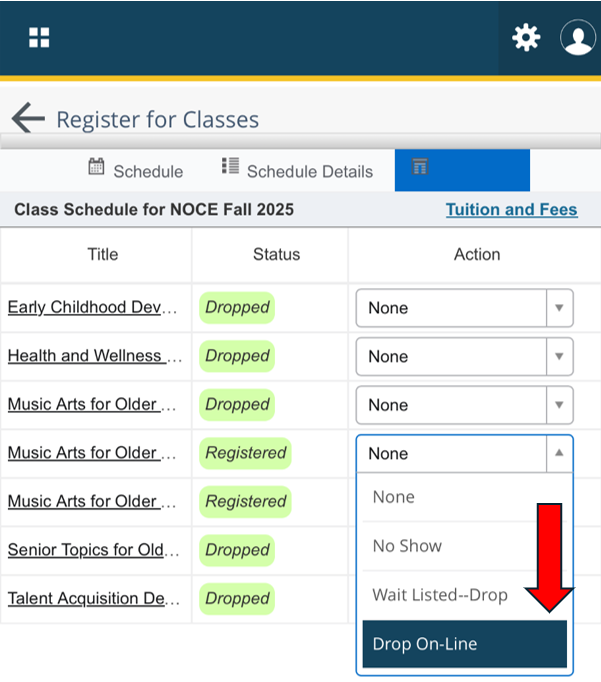
In the “Summary” section, locate the course you wish to drop. Under the “Action” column, click the drop-down menu that currently says “None.”
Choose the appropriate drop option:
- For non-CTE courses (e.g., Parenting, ESL, Emeritus, HS/GED), select “Drop On-Line.”
- For CTE courses (e.g., Medical Assistant, Early Childhood Education, etc.), select “Drop-Career Tech SCE.”
Step 4:
Once successfully dropped, the course status will update to “Dropped” under the “Status” column.
If you receive an error preventing registration, please visit noce.edu/errors for a list of common issues, what they mean, and how to resolve them.
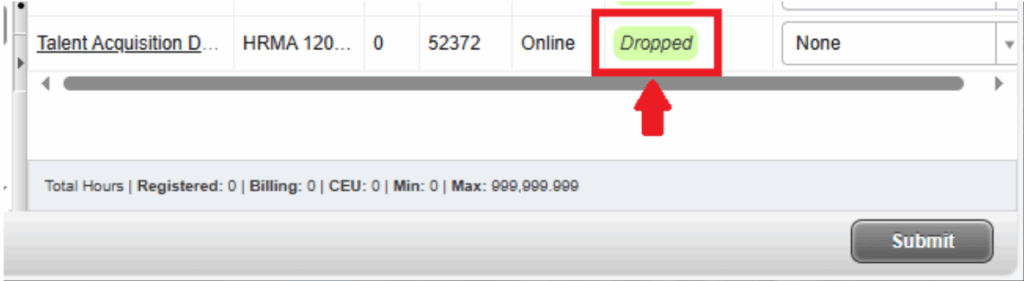
Step 5:
To print your schedule, please click the following link for instructions on how to confirm your class schedule on mobile.