


ABED 102 Supervised Tutoring Instructions for Students
Online drop in and scheduled tutoring appointments are available through the ABED 102 Canvas Course.
Enrolling and Logging into Canvas ABED 102 for Online Tutoring
Step 1: Enroll in ABED 102 Supervised Tutoring on MyGateway
- You can register on MyGateway. For more information or instructions, visit the How to Register for Classes page.
- Use your Student ID and password to log in.
- Students can enroll in the course by following the instructions on the Returning Students – Welcome! Page. For registration support and questions, call (714) 808-4679 or e-mail admission@noce.edu.

At the very top of the homepage, click on the MyGateway icon.
Or go to noce.edu/mygateway.
*Safari is not compatible*
Log onto MyGateway with your MyGateway ID (also known as your Banner/Student ID) and your password.
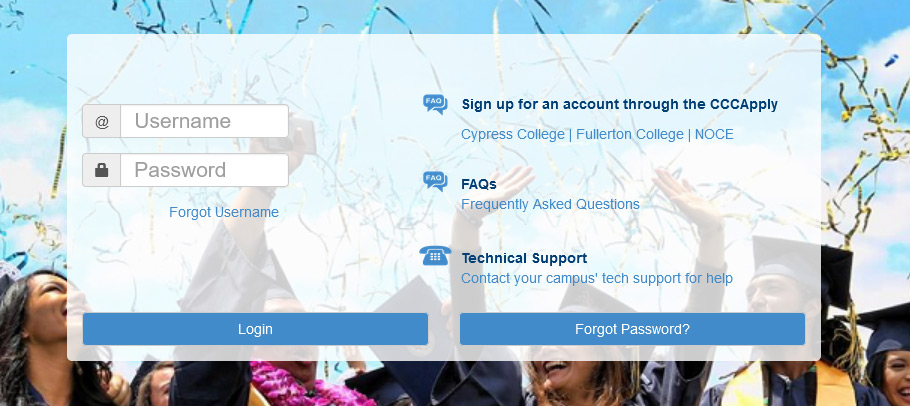
Don’t know your MyGateway ID?
Click on the “Forgot Username” link on the MyGateway site.
Don’t know your password?
Click on the “Forgot Password?” button on the MyGateway site. 
Do you still need help or have questions? E-mail StarHelp at admission@noce.edu or call StarHelp at (714) 808-4679.
Step 2: Log into the MyApps Dashboard
Within 12-24 hours of registering, the ABED 102 Supervised Tutoring course should appear on your dashboard.
Log into Canvas through the MyApps portal: login.noce.edu and then log into Canvas.

Step 3: Log into the Canvas Dashboard
When ABED 102 Supervised Tutoring appears, select the course and view the Home Page.
Select NetTutor on the navigation menu.

Step 4: Log into NetTutor and Choose a Tutoring Center
After logging into the Canvas Course and the NetTutor link, you will need to choose which services you wish to use.

- NOCE Tutoring Center – live NOCE tutors who can tutor most subjects at NOCE from 9:30 a.m. to 5 p.m. Monday through Thursday.
- NetTutor Tutoring Center – live drop-in and scheduled tutoring appointments with tutors for evenings and weekends
Step 5: Select the Subject Group for Tutoring
After selecting the NOCE or NetTutor Tutoring Center, you can select the subject in which you wish to be tutored. NOCE tutors can tutor in most subjects offered at NOCE, and NetTutors specialize in only one subject.
NOCE Tutoring Subject Groups

NetTutor Tutoring Subject Groups

Next Steps for Each Type of Tutoring
Subject Group Dashboard
In the Subject Group Dashboard, you will see the following options:

- One-On-One Live Room – meet with a live one-on-one tutor right now
- Schedule an appointment – schedule an appointment for a tutoring session later
- Drop off a Paper – upload a paper to be reviewed later
- Drop off a Question – type in a question to be answered later
- Locker – review any previously recorded tutoring sessions in that subject or pick up paper and question feedback.
One-on-One Live Room

If a tutor is available, select the black arrow to join the one-on-one room.
Drop In Lobby for all Tutoring Centers
The Lobby is text-based and is designed to work with assistive technology. In the Lobby, you can choose to:
- Type in the chat window with the tutor you can type in the text box at the bottom of the Lobby screen. This is text only and no audio or video.
- Launch a Video Chat – you can request that the tutor open a video screen so you can meet face-to-face with a tutor on video.
- Launch the Whiteboard (Drawing Canvas) – The drawing canvas includes subject-specific buttons and symbols (e.g. math tools like fractions and an equation editor, chemistry tools to draw bonds, and more).

Students also have the ability to Leave the Session from the Lobby.
Launch a Live Video Chat
You can request through the chat window that your tutor open a video screen so that you can meet through video. In this window, you can use the tool buttons at the top to:
- Mute or unmute your microphone
- Toggle on/off your video
- Expand the video window
- Share your screen
- Set up and change your audio and video settings.

To end a session, please select the Leave Session button on your screen. Your session will be recorded and available to you in the subject locker. You can access these on the subject dashboard.
Schedule an Appointment with a Tutor
From the subject group dashboard, you can schedule an appointment.
Select the Schedule an Appointment tile from the dashboard.
Step 1: Set Up Appointment Reminders
Once you select the Schedule Appointment option, the Schedule the Appointment page will be displayed. Then you can view the schedule by month, week, or day. You may also want to set up text or email reminders, or both. You only need to do this once, and you can change it at any time.
To set up your reminders, select the Remind Me About Appointments button on the right.

Step 2: Select the Day and Time You Want to Schedule the Appointment
Next, select the time slot for the day and time you want to meet with a tutor. Each tutoring session is 30 minutes long.
Select the black box for the day and time you want to meet the tutor.

Step 3: Schedule the Appointment
After you select a time slot, the session details will show on the Schedule Appointment screen.

Select the Schedule Appointment button.
Step 4: Review the Appointment Information
After you schedule your appointment, the confirmation screen will show the date, time, subject, and status of your appointment. To cancel or reschedule your appointment, select the Options button.

You will receive a confirmation email or text.
Join your Appointment
To join your appointment, you will follow the same steps:
- Log into the Canvas ABED 102 Supervised Tutoring Course
- Select NetTutor from the navigational menu
- Select the Tutoring Center (NOCE Tutoring Center, NetTutor Tutoring Center, or Writing Center).
- Select the subject you made the appointment for (like All Subjects – Math).
- On the Subject Group Dashboard, you will see a button on the top of the screen to join the session.
- When it is time for your appointment, the button will activate.
- Select the Join Session button
